Add the copy
To improve marketing copy, start with the copy itself. Click New at the top of the app. There are two ways to give CopyZap the copy.
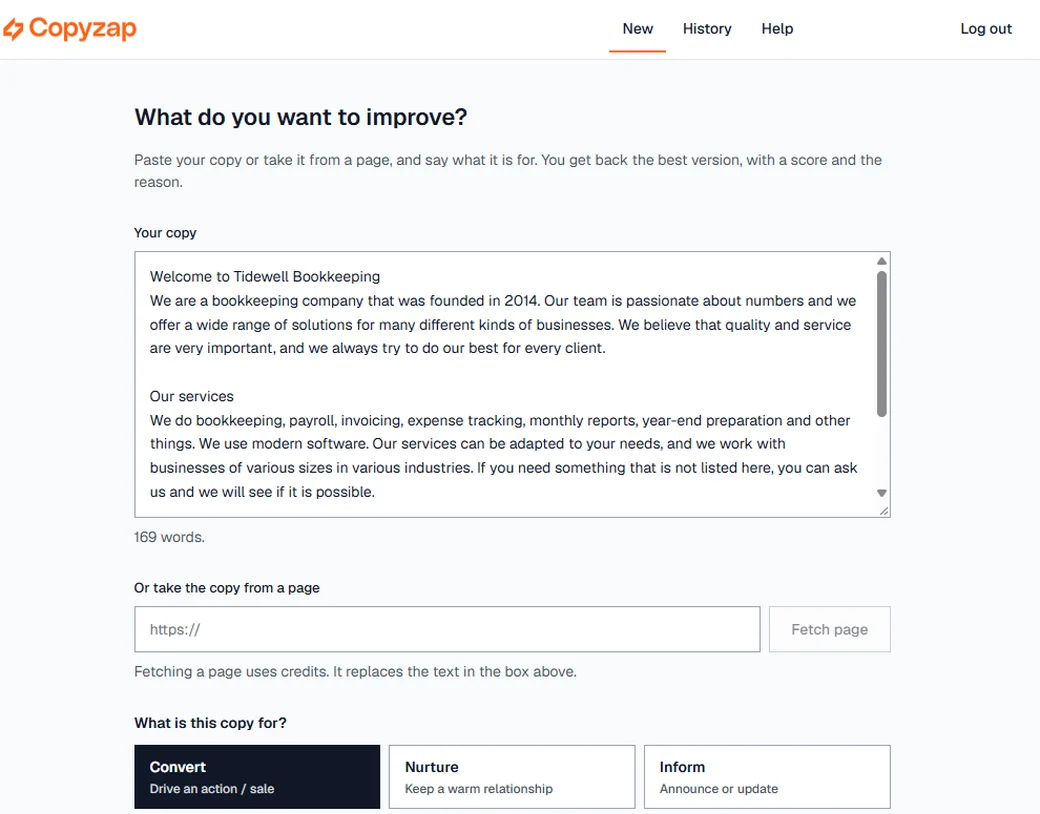
Paste it
Paste the text into Your copy. It can be any marketing copy — a web page, a landing page, an email or newsletter, a social post, an ad, a headline or slogan — and come from anywhere: a Word file, a Google Doc, an email from your client. The word count under the box updates as you go.
Or take it from a page
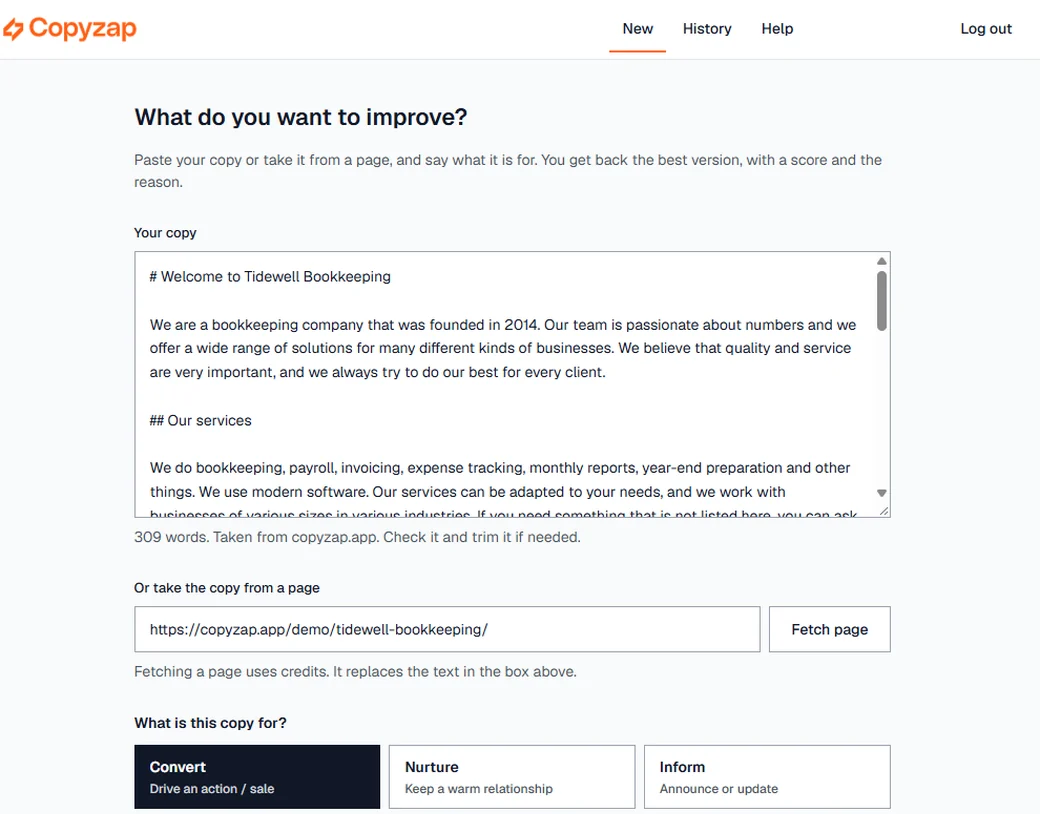
Enter the web address under Or take the copy from a page and click Fetch page. CopyZap reads the page, keeps the headings, and puts the text into the box above — replacing anything that was there.
- Copy can be from 3 words (a slogan or headline) up to 5,000 words (a whole page).
- Fetching a page uses a few credits.
- Pages behind a login (a client's admin area, a password-protected staging site) can't be fetched. Copy the text and paste it instead.
Choose the goal
Under What is this copy for?, pick what the page should do. The right way to improve marketing copy depends on its job, so CopyZap writes and scores for that goal.
- Convert — get the reader to act: book a call, buy, sign up. The right choice for most homepages, service pages and landing pages.
- Nurture — keep a warm relationship, for example a newsletter or a follow-up page.
- Inform — announce or update: news, a change in opening hours, a new service.
- Educate — teach or onboard: guides, how-to pages, FAQs.
- Brand — build trust and identity: About pages, values, the story behind the business.
- Other — say it in your own words, in 3 to 80 characters, for example “Get small business owners to book a free consultation”.
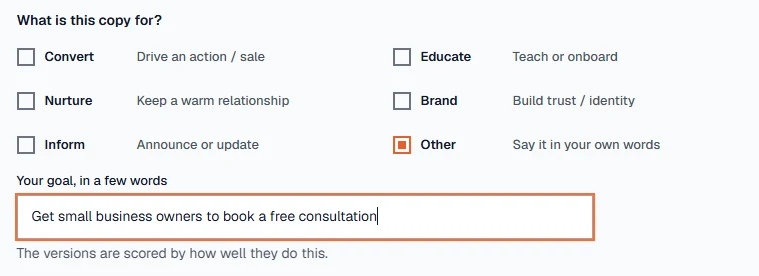
The goal steers the scoring: each version is judged by how well it reaches that goal. Then click Continue.
Check what CopyZap understood
CopyZap reads the copy and fills in what it understood. Fix anything that's wrong before you generate — these fields steer the writing and the scoring.
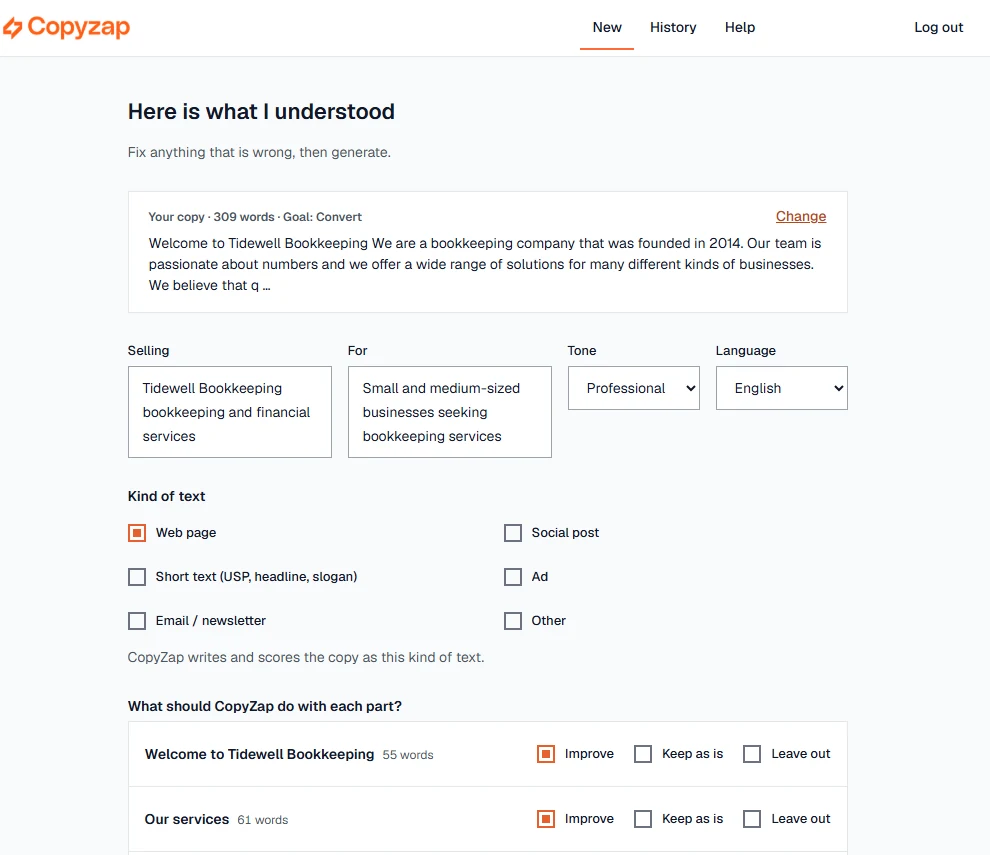
- Selling — the product or service, for example “Tidewell Bookkeeping bookkeeping and financial services”.
- For — who the copy is for, for example “Small and medium-sized businesses seeking bookkeeping services”. The more specific, the better.
- Tone — Professional, Friendly, Bold, Minimalist, Creative or Persuasive.
- Language — the language the new versions are written in. CopyZap sets it from your copy; change it if it's wrong.
Kind of text
CopyZap also guesses what kind of marketing copy it is, and writes and scores it as that kind. Change it if the guess is wrong.
- Web page — home, service and landing pages. Copy fetched from a web address starts here.
- Short text (USP, headline, slogan) — judged as one strong statement, not as a page that is too short. Anything under 10 words is treated as a short text.
- Email / newsletter — subject line, greeting and sign-off stay in place; no headings are added.
- Social post — hashtags, emoji and links are kept.
- Ad — headline and description lines keep their form.
- Other — optionally name it in a few words, for example “product description”.
The kind of text also decides which questions Make it stronger asks, and how many. If you change the kind, the goal or the copy, the questions are updated.
Click Change next to the copy summary if you want to go back and edit the text itself.
Under “Looks right, generate” the screen says about how many credits the run will use, for example “Uses about 30 credits”. It goes up with the number of words you rewrite or keep; parts you leave out don't count.
Choose what to improve
You don't have to improve marketing copy everywhere at once. For a web page, CopyZap splits the copy into its parts — usually one per heading — and shows the word count of each. For every part you choose:
- Improve: CopyZap rewrites this part. On a web page it may reword it, move it, change its heading or join it with another part, so the new page reads well from top to bottom. It never adds facts your copy doesn't state. This is the starting choice for most parts.
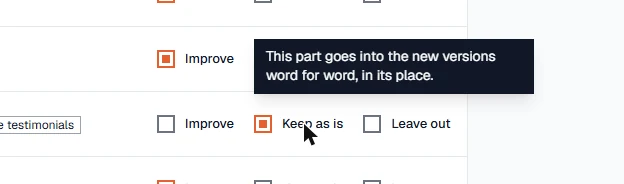
- Keep as is: the part goes into the new page word for word, in its place. Use it for legal text, prices you're not allowed to change, or a tagline your client loves.
- Leave out: the part is dropped from the new page and isn't scored.
Testimonials
What your customers said shouldn't be reworded. Testimonials that CopyZap finds get a row of their own, set to Keep as is. They stay word for word, but on a web page CopyZap may move them to where they help most, usually just before the call to action. You can change that choice like any other.
Page leftovers
Some lines only make sense on the live page: a row of client names from a portfolio, “Read more” or “LEER MÁS” under a heading, the names on testimonial tabs, a repeated button. CopyZap gives each run of these a row of its own, set to Leave out, because if they stay in they're scored as copy and pull the score down. They're left out of your original too, so the comparison stays fair.
A link such as “See our plans” that works as a call to action isn't treated as a leftover. If a row marked as leftovers does belong in the copy, set it back to Improve or Keep as is.
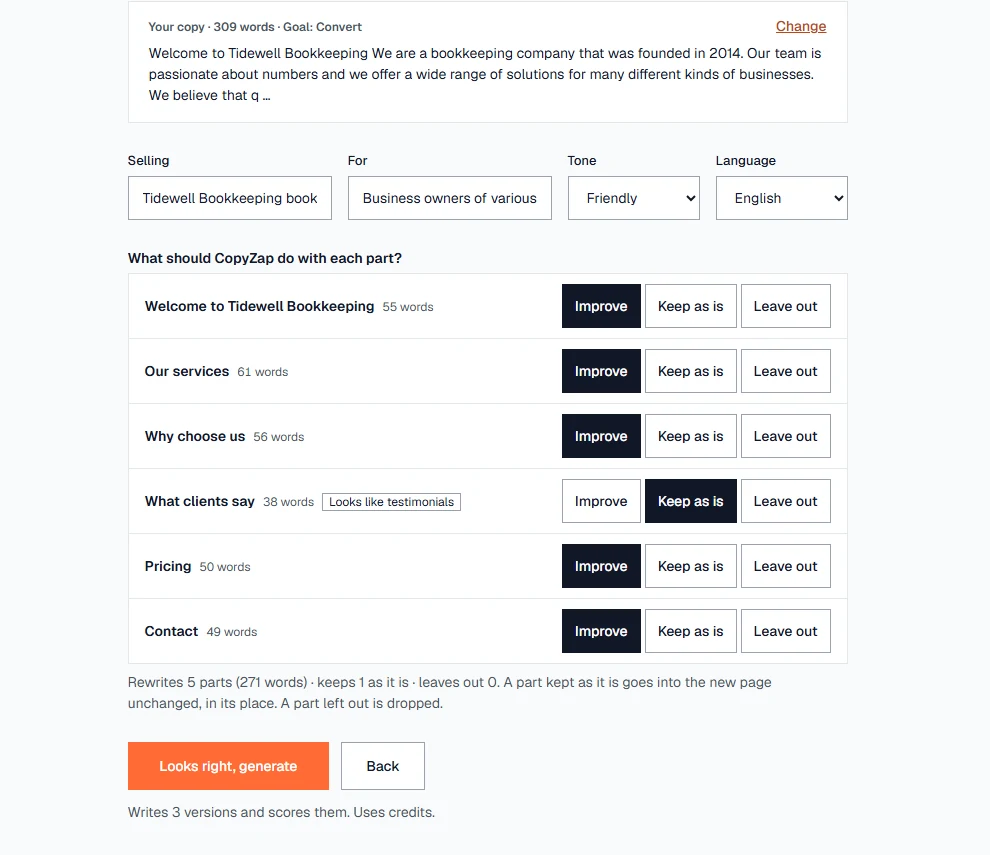
The line under the list sums it up, for example “Rewrites 5 parts (271 words) · keeps 1 as it is · leaves out 0”. When it looks right, click Looks right, generate.
Tips on every control
Not sure what a choice does? Rest the mouse on it for half a second — or reach it with the Tab key — and a short tip explains it. Every goal, kind of text, part choice and change option has one.