
How CopyZap works
CopyZap takes copy you already have — pasted text or a live web page — and writes three new versions of it. Each version is scored against your original on the same 0–100 scale, and the best one is recommended, with the reasons.
A run has five steps:
- Paste your copy, or take it from a web address.
- Choose the goal and what happens to each part of the page.
- Score: CopyZap writes three versions and scores them.
- Refine: ask for a change in plain words, or edit the text yourself.
- Report: copy the result or export a report for your client.
Prefer to watch? The 34-second demo on the homepage shows the whole run.
1. Add the copy
Click New at the top of the app. There are two ways to give CopyZap the copy.
Paste it
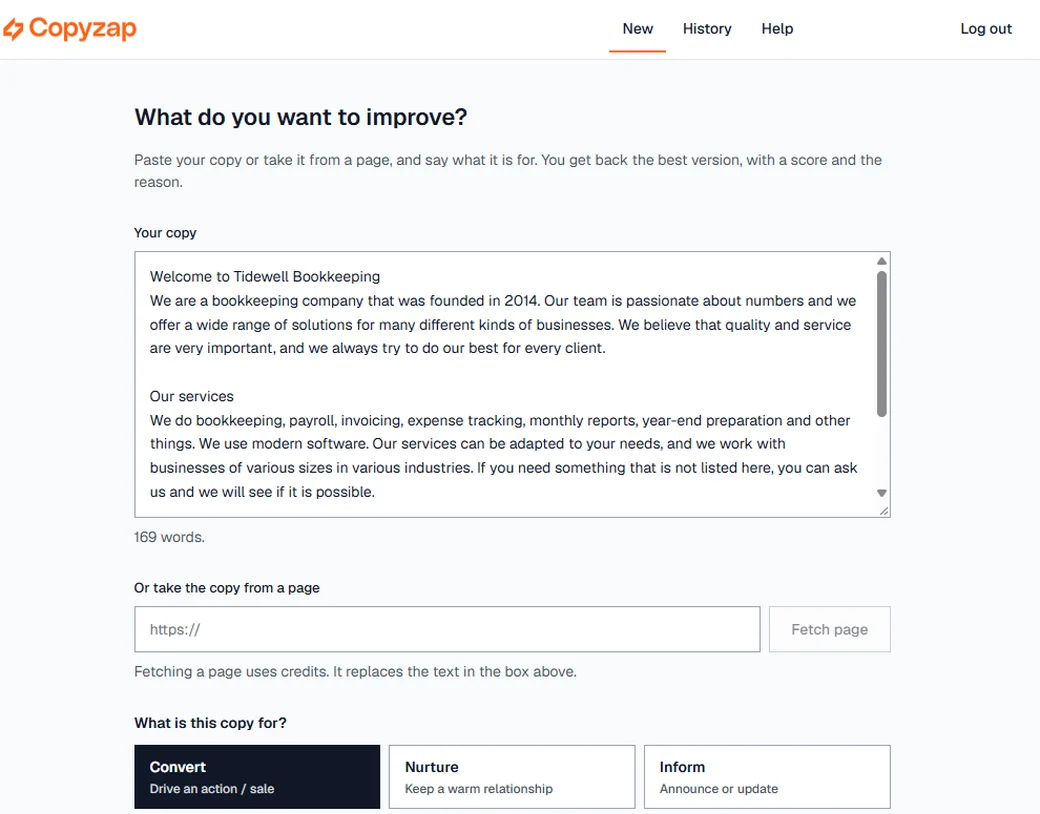
Paste the text into Your copy. It can come from anywhere: a Word file, a Google Doc, an email from your client. The word count under the box updates as you go.
Or take it from a page
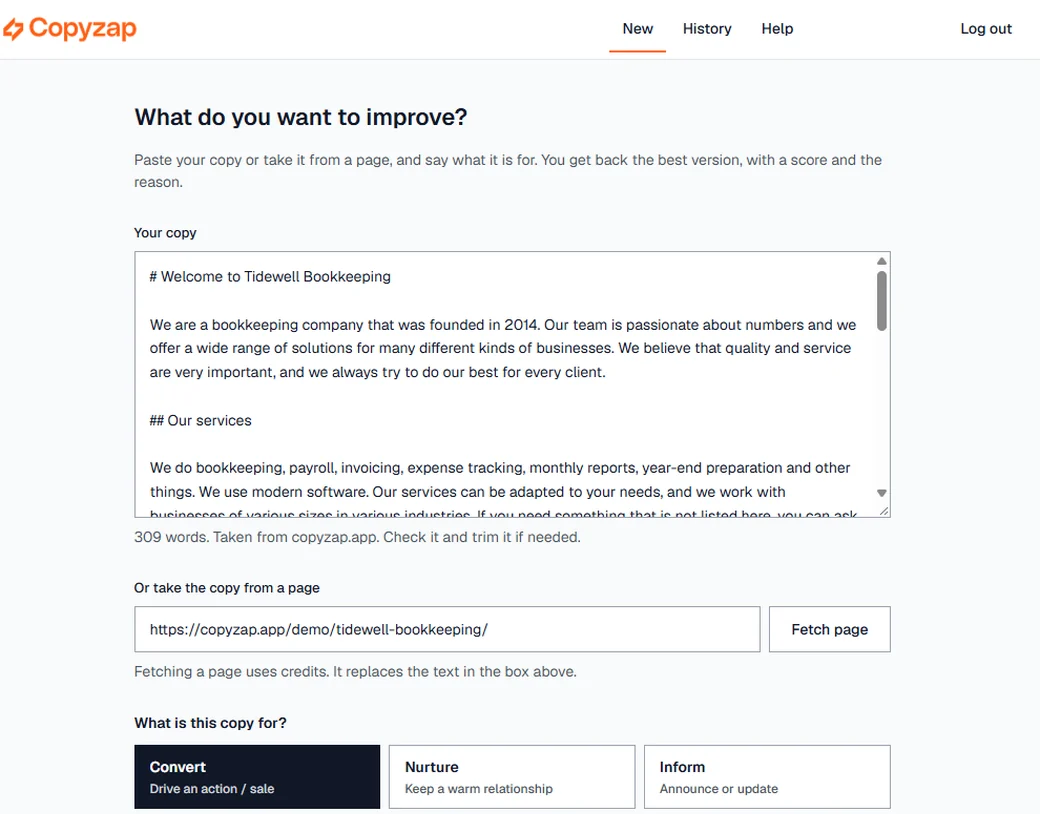
Enter the web address under Or take the copy from a page and click Fetch page. CopyZap reads the page, keeps the headings, and puts the text into the box above — replacing anything that was there.
- Pages can be up to 5,000 words.
- Fetching a page uses a few credits.
- Pages behind a login (a client's admin area, a password-protected staging site) can't be fetched. Copy the text and paste it instead.
2. Choose the goal
Under What is this copy for?, pick what the page should do. CopyZap writes and scores for that goal.
- Convert — get the reader to act: book a call, buy, sign up. The right choice for most homepages, service pages and landing pages.
- Nurture — keep a warm relationship, for example a newsletter or a follow-up page.
- Inform — announce or update: news, a change in opening hours, a new service.
- Educate — teach or onboard: guides, how-to pages, FAQs.
- Brand — build trust and identity: About pages, values, the story behind the business.
Then click Continue.
3. Check what CopyZap understood
CopyZap reads the copy and fills in four fields. Fix anything that's wrong before you generate — these steer the writing.
- Selling — the product or service, for example “Tidewell Bookkeeping bookkeeping and financial services”.
- For — who the page is for, for example “Business owners of various sizes and industries”. The more specific, the better.
- Tone — Professional, Friendly, Bold, Minimalist, Creative or Persuasive.
- Language — the language the new versions are written in. CopyZap sets it from your copy; change it if it's wrong.
Click Change next to the copy summary if you want to go back and edit the text itself.
4. Choose what to improve
CopyZap splits the page into its parts — usually one per heading — and shows the word count of each. For every part you choose:
- Improve — CopyZap rewrites this part.
- Keep as is — the part goes into the new page word for word, in its place. Use it for testimonials, legal text, prices you're not allowed to change, or a tagline your client loves.
- Leave out — the part is dropped from the new page.
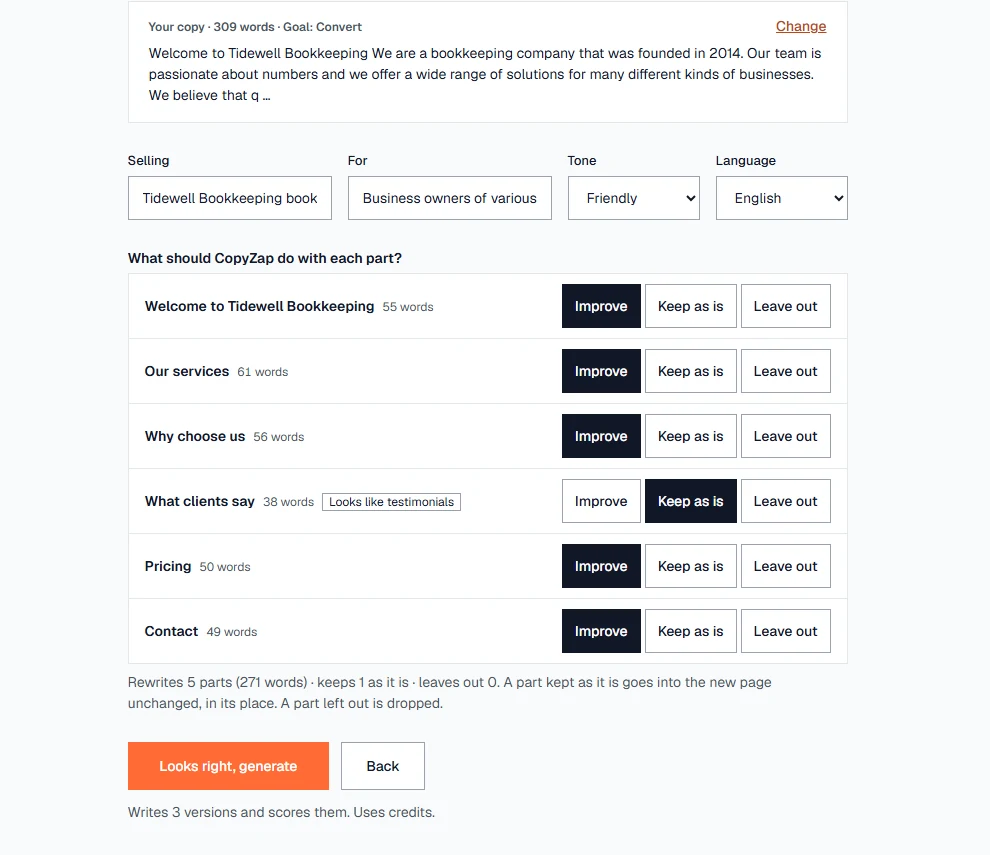
The line under the list sums it up, for example “Rewrites 5 parts (271 words) · keeps 1 as it is · leaves out 0”. When it looks right, click Looks right, generate.
5. Writing and scoring
A window shows each stage — checking your account, writing three versions, scoring them and picking the best — with the running time. A short page takes about two minutes, a long one about four. You'll hear a short sound when it's done.
Every version is scored three times and the middle score counts, so one unusually high or low reading can't decide the result.
6. Read the result
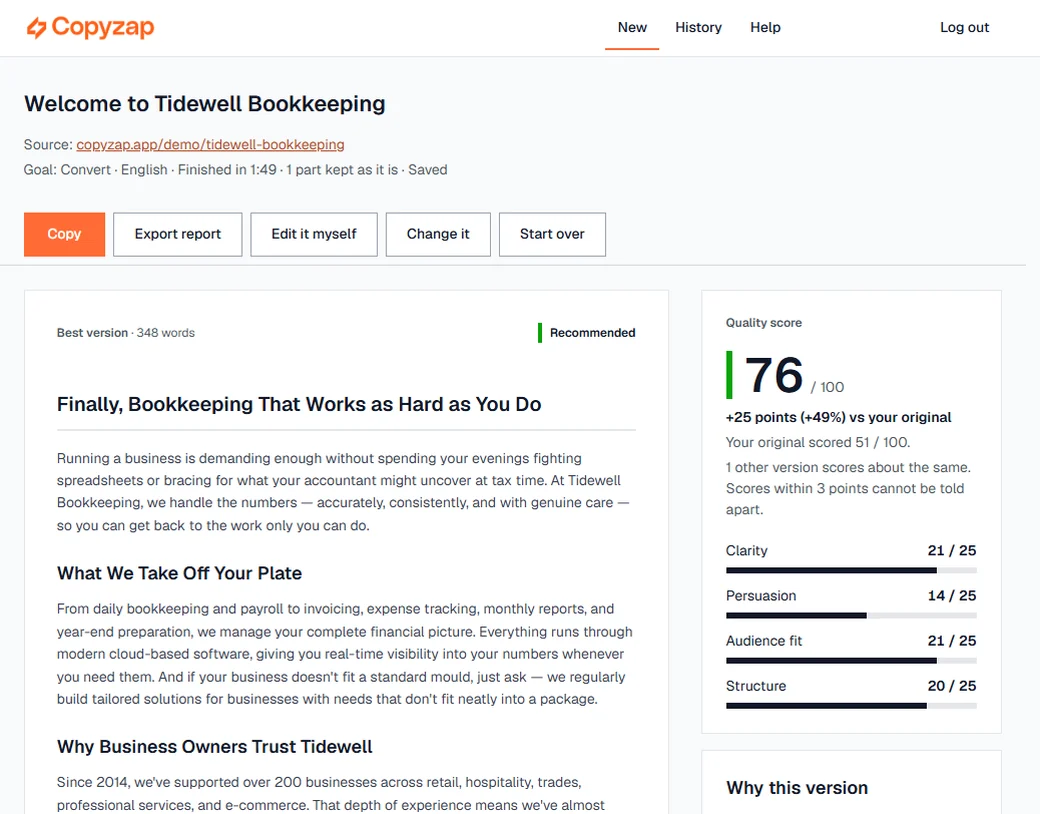
The result opens with the best version on the left and its quality score on the right.
The quality score
The score runs from 0 to 100 and is made of four parts, each out of 25:
- Clarity — is the message understood at once, without jargon?
- Persuasion — does it move the reader toward the goal?
- Audience fit — does it speak to the people in the For field?
- Structure — does the page flow in a sensible order?
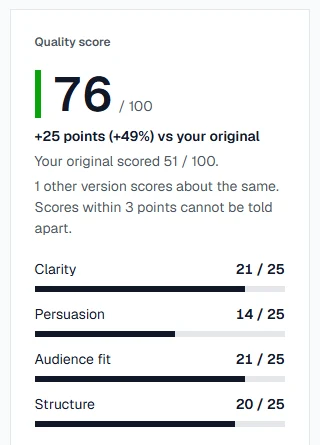
Under the score you see how far the best version is above (or below) your original. When versions are within 3 points of each other, CopyZap says they score “about the same” — a gap that small can't be told apart, so don't sell it to a client as an improvement.
Why this version
Below the score, CopyZap explains each of the four parts in plain words: what works, and what still holds the copy back. This is the part to read before you send anything to a client.
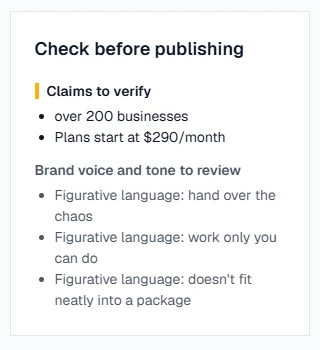
Check before publishing
CopyZap lists the claims to verify — numbers, prices, promises — and language to review for brand voice. The AI can't know whether “over 200 businesses” is true; you or your client have to.
The other versions
Your original and all three versions are on the same page, each with its word count and score. Use the Jump to bar at the bottom of the screen to move between them and to the Rankings.
7. Ask for a change
Click Change it and type what should change, the way you'd brief a copywriter. CopyZap rewrites the best version, scores it, and keeps whichever is better — your result never gets worse by asking.
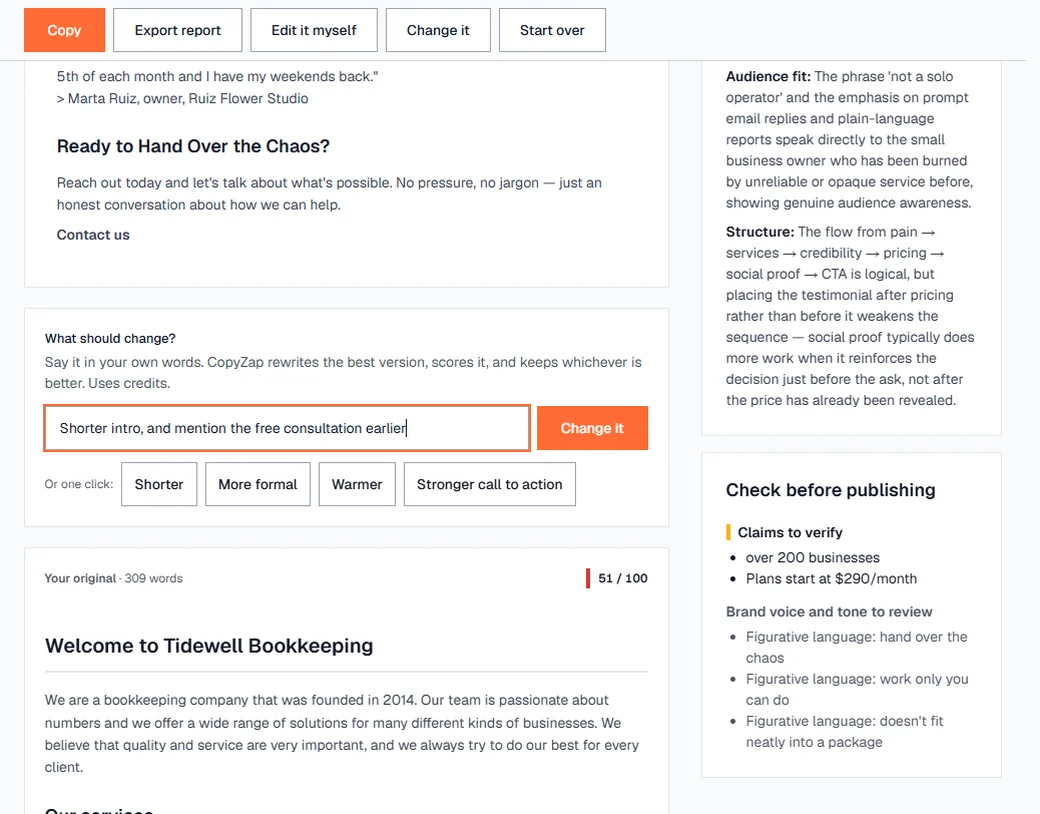
Or use one click: Shorter, More formal, Warmer or Stronger call to action. Each change uses credits.
Good requests are specific: “Mention the free consultation in the first paragraph” works better than “make it better”.
8. Edit it yourself
Click Edit it myself to change the best version directly, as plain text. Nothing is rewritten for you, so it costs only a scoring run. When you're done, click Score my edit.
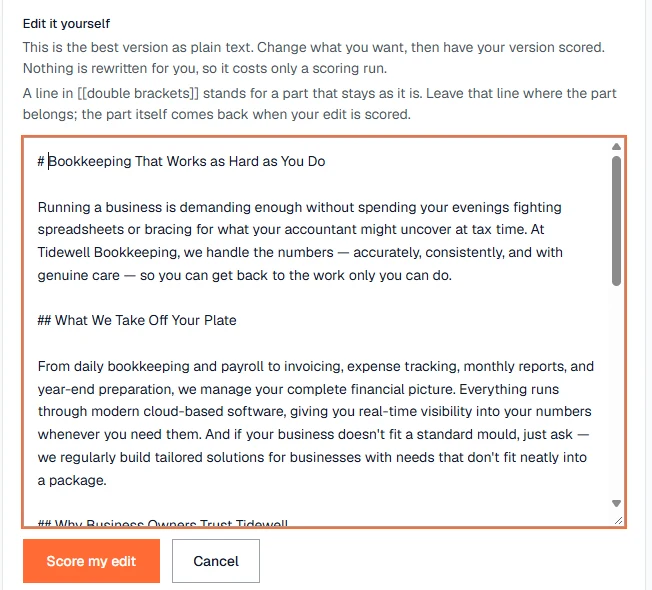
The new score tells you straight away whether your change made the page better or worse.
9. Copy and export the report
Copy puts the best version on your clipboard, ready to paste into WordPress or any page builder.
Export report saves an HTML file you can open in any browser and send to your client. It contains:
- the original score and the winner's score, with the difference;
- a summary of the inputs: goal, tone, audience, source page and which parts were kept;
- the original and all three versions, each with its score and reasons;
- a comparison and ranking of all versions.
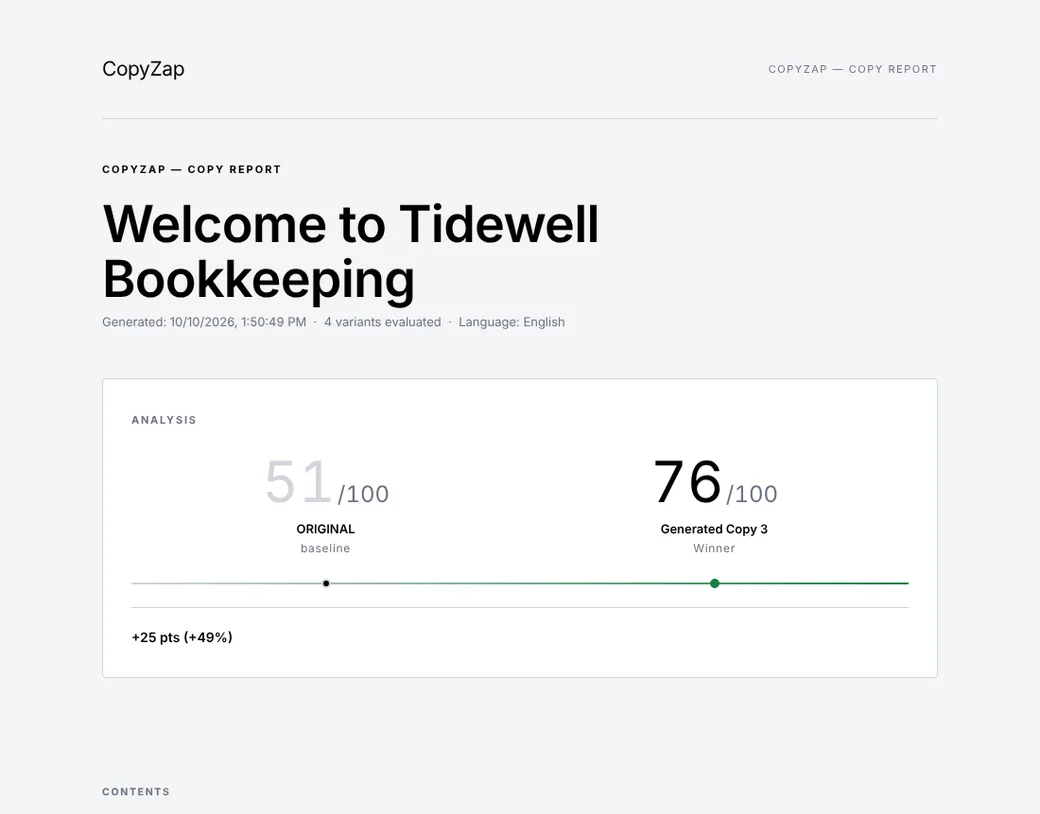
The report is always in English. The copy inside it stays in its own language.
History
Every run is saved automatically. Click History at the top of the app to open an earlier run — with its versions, scores and any changes you made — and carry on where you left off. Start over on a result begins a new run without losing the old one.
Credits
The credits you have left are shown at the top of the app. Credits are used when CopyZap fetches a page, writes and scores versions, makes a change you asked for, or scores your own edit.
- A typical page of a few hundred words uses about 55 credits, including a couple of changes.
- Long pages use more — up to about 140 credits for a page of several thousand words.
- The free trial includes 1,000 credits for 30 days — about 15 typical pages. No card needed.
Languages
The app, the scores, the reasons and the report are in English, so everyone on your team reads them the same way. Your copy is written in the language you choose in the Language field: English, Spanish, French, German, Italian or Portuguese. Every language is scored on the same scale.
Tips for better results
- Be specific in “For”. “Owners of restaurants and cafés with 5–30 staff” gives sharper copy than “businesses”.
- Run the whole page. Scoring sees how the parts work together; a single paragraph out of context scores differently.
- Keep what isn't yours to change. Testimonials, legal text and agreed prices belong on Keep as is.
- Leave out navigation and footers. Menus, cookie notices and footer links aren't copy — set them to Leave out or delete them before you continue.
- Check every claim. Read Check before publishing before anything goes live.
- Use the score honestly. If the best version is “about the same” as the original, the original is already good — tell your client so.
If something goes wrong
The page can't be fetched
Some sites block automatic reading, or need a login. Open the page in your browser, copy the text and paste it into Your copy.
The page is longer than 5,000 words
Delete the parts that aren't copy (menus, long legal text), or set some parts to Leave out and run them separately.
The same copy scores a little differently each time
That's normal for AI scoring, which is why CopyZap scores every version three times and uses the middle score — and why gaps of 3 points or less count as “about the same”.
The run stopped or the tab was closed
Open History. If the run finished, it's there. If not, start it again.
Still stuck?
Write to hi@copyzap.app and tell us what you were doing. A screenshot helps.